
Practice Logo - Banners and Icons
Want to have a custom banner and logo in the system? Something to include on your client portal, receipts, system emails, etc?
Let your clients know who you are! Read on to find out how, and where these logos show up.
In this Article:
- Upload a Practice Logo Banner or Icon
- Banner Size Logos
- Icon Size Logos
- Where do Practice Logo Banners and Icons show up?
Upload a Practice Logo Banner or Icon
To configure and upload your practice banner:
- On any screen click (top right)
- You may have to scroll just a bit
- Under the section Practice Logo you have two different kinds of logos:
- Banner size images
- Icon size images

- Click (top right of either section) to load the image uploader
- Follow the prompts to upload a new image, or edit your existing one
Information about:
Banner Size Logos
The banner size logo is a 4:1 scaled logo that will be displayed in a few areas in the system detailed below, this is the main logo used.
- Captured dimensions: 700 pixels x 175 pixels (4:1 ratio)
- Maximum file size: 512 kb
- Filetype support: png, pjp, jpg, pjpeg, jpeg, jfif
- We also support transparency on png images
- Is your logo another format? Use a free online converter like this, or search Google for a PNG converter
- We are not affiliated with nor do we explicitly recommend this service specifically. You are free to find your own option
Unsure how to resize or how to work with images?
Microsoft's Paint and Apple's Preview are two built-in programs for the two most popular operating systems and should be enough for minor cropping, editing, and resizing.Still having problems? Consider sending it to whoever built your logo originally, and ask them to re-size it to 700px by 175px or consult with a graphic artist or designer on getting your logo edited. Consider showing them the above dimensions and file size/type. While TherapyAppointment staff are experts with our software and quite a few other things, we are unable to assist with professional graphic editing needs.
- Here's what you'll see for the first time if you've never uploaded a logo

- A prompt should then come up → select the image from your computer
- You should then see the uploaded image, and be allowed to crop it like this:

- Here you can adjust the image. Click and hold to drag the image if you need to move it
- Use the slider below to zoom in/out of the image
- Then click
Once saved, click
Icon Size Logos
- Captured dimensions: 1:1 scale (same width as length)
- as long as your icon is the same size and height it will display as expected
- Maximum file size: 512 kb
- Filetype support: png, pjp, jpg, pjpeg, jpeg, jfif
- We also support transparency on png images
- You can upload your icon logo with the same steps as above
Where do Practice Logo Banners & Icons show up?
These show up in several of areas of TherapyAppointment, namely:
- Your unique client portal link
- Our public facing "Find your Therapist" search (the only place the Icon is used)
- Once signed into the client portal (top left, replaces our banner)
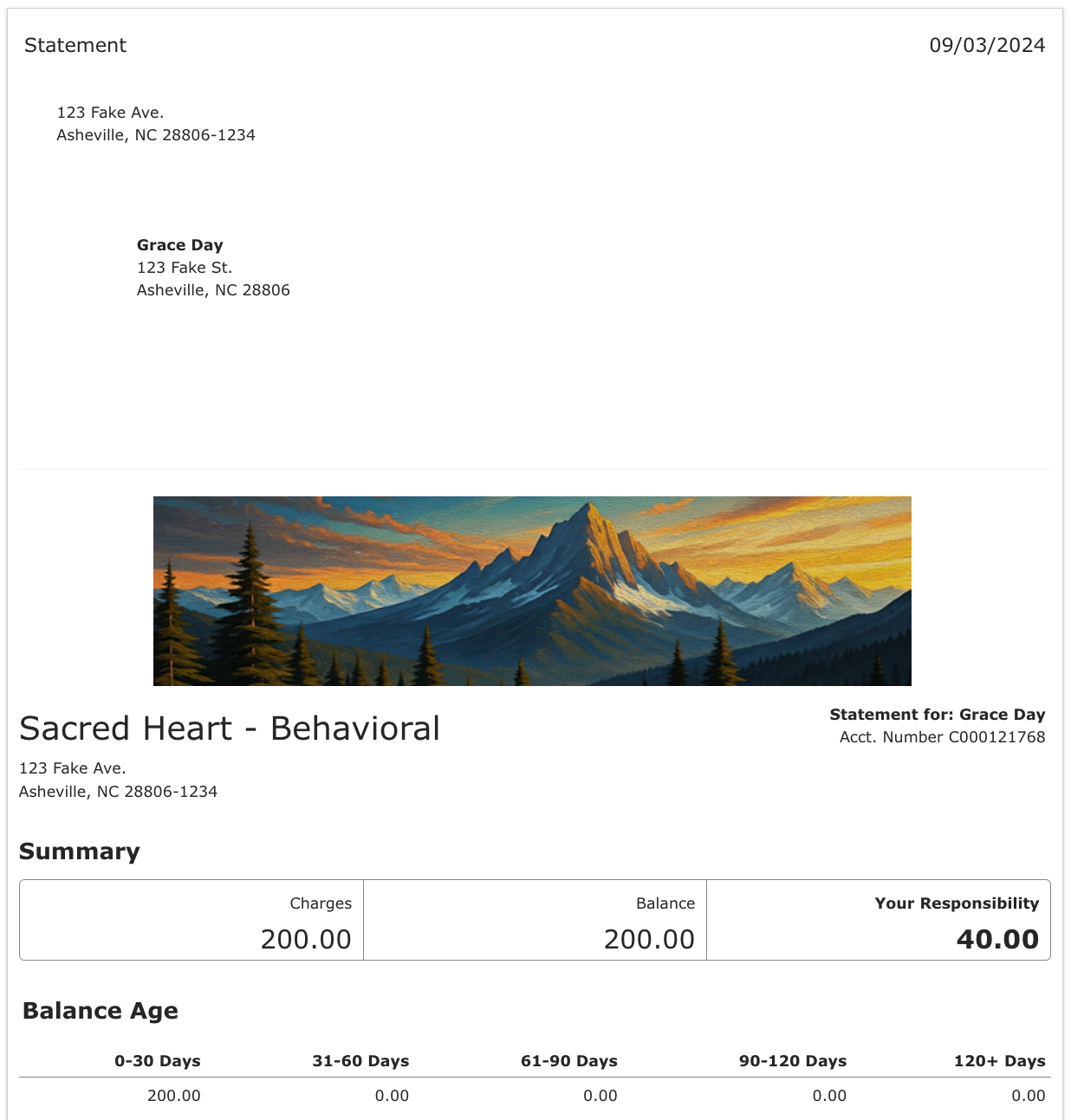
- Statements
- Receipts
- Medical school / work excuses
- Clinical records / chart notes being printed
- Automated system emails sent to clients (registration, password resets, statements, etc)
Below we include screenshot examples of these places, please read on for more information.
Your Unique Client Portal Link
We display your practice logo banner at the top:

Once Signed into the Client Portal
We display your practice logo banner at the top left corner instead of our logo:

Statements
We display your practice logo banner just above the statement details:
Receipts
We display your practice logo banner at the top left corner:

Medical school / work excuses
We display your practice logo banner at the top center:

Chart Notes:
We display your practice logo banner at the top center:

Automated System Emails
Emails sent to clients will also include your practice logo banner at the top center:
