
iCalendar Setup and External Calendars
This tutorial quickly helps you set up a one way subscription sync either from our system to your calendar, or from your calendar (external) to ours.
In this Article:
TherapyAppointment → your calendar
Your calendar → TherapyAppointment

iCalendar Setup
Shared iCal feeds are used to view your appointment and/or meeting schedule in another calendar system, like Apple's Calendar or Microsoft Outlook.
With this type of calendar sync, we sync 60 days out (2 months).
Steps:
- Click
- Then click (right menu):
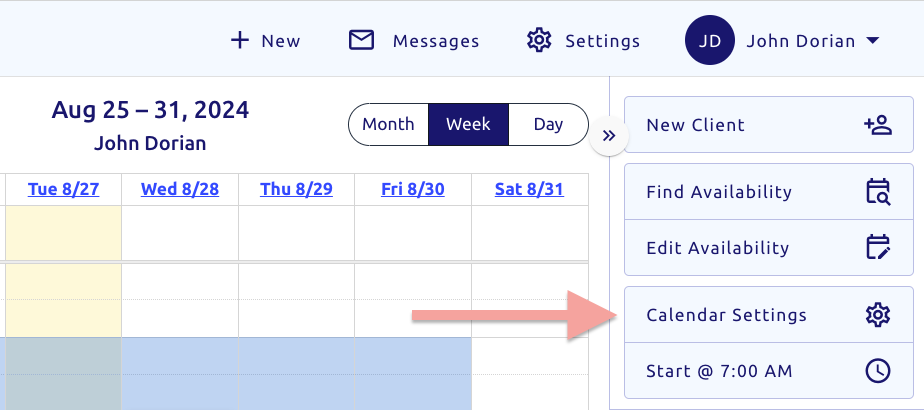
- Under the iCal Calendar Sharing section, click button:

- Enter the calendar name, specify what to sync (meetings and/or appointments) and click
- Next, click file_copy Copy URL to the right:

- Then paste that URL into your calendar subscription service
- Apple may list it as a calendar subscription
Once you've connected your account, here's what to expect. Tap any section to expand it.
Removing or Editing a Shared iCalendar
- From the above example, click the blue Name of the calendar (far left column):

- Then click (bottom left):
External Calendar
If you have a non google calendar, and would like to import this calendar into TherapyAppointment to view in our system, to import an external calendar:
- Click
- Click (right menu):
- Near the bottom, locate the External Calendars section
- Click (top right):

Alternatively:
- From the (left menu), find the right menu section My Calendars
- Then click

- Enter the name you want and paste your shared iCal link (that you can find in your external calendar/settings) in the iCal URL
- Pick the calendar color and click

Synchronize
- Unlike Google Calendar Sync, updates here are not automatic.
- To sync an external calendar:
From the Calendar:
On the far right menu under filters find My Calendars and click the sync button:

Removing or Editing an External Calendar
To remove or edit an existing external calendar feed, follow these steps:
- Click
- Click (right menu):
- Locate the External Calendars section, to the far right of the calendar name click Edit
- Click the bottom left button:
Alternatively:
- Click (left menu) and under filters (right menu) find My Calendars click the edit button:

- Then click the bottom left button: