
How to chart with AI notes
Important:
The AI charting button will only appear with two different chart note types:
- The Progress Note (HIPAA)
- The Narrative Note (Simple)
The SOAP Note template will remain unchanged.
Acceptable chart types:

Charting depends on which method you decide to use. We have steps for all 4 options here:
In person
Access your chart note as you normally would:
- From the click on the appointment
- Click the top right button
- Scroll down to the Notes section & on the right click shown below:

- Next you'll see this audio input option, allowing you to pick from any available system microphones:

- Please ensure you see the microphone respond
- Need another mic input? Use the dropdown to change source to the microphone you prefer to use:

- On the next screen, keep the option In-Person selected and click
- Once you click this, the session will immediately begin.

- Click to either pause or end the session
- We will then begin automatically generating your chart note based on your chart type selection, and the transcription recorded
- While your note is generating, you can either wait or click outside and return back when finished
- This is not a transcription service. AI charting compiles a chart note based on all the audio input
Even after generation, you can still change your templates:
- SOAP
- DAP
- BIRP
- GRIP
- SIRP
- PIRP
- PIE
- Intake
- Case Management
- Supervision
- Couples SOAP
- Pick your note type
- Click
- Make further edits below
Once generated, you should see something similar to this:

Here you have a few options that we'll break down:
Chart note type
At the top right you can switch between chart note type you prefer shown above. The default is SOAP.

At the bottom right we have the following options:

Edit ( free! )
Enter your details in the bottom center text box, then click to the right to regenerate the note. Editing is free of charge.
Example edit prompts:
- Make this note more concise
- Include more session quotes
- Make symptoms more specific for X
- Add _ and supporting details to the treatment plan section
- Make this note ready for insurance review in specific topics X Y Z
- Have an edit prompt that would be helpful to others? Email us!
Replace notes
After thorough review and satisfied with the generated note, click (bottom right). This will add the note and overwrite any other note you have entered in this section.
Don't worry, if you need to make changes after the fact, you still can do so in the notes section of your generated chart note inserted, but you won't be able to use the edit box specifically to regenerate.
Add to notes:
If you already have existing notes, and would just like to append this output to it, click instead (bottom right).
Discard
Clicking that will discard any note generated. You will still be charged for this generated note.
Once added to notes:
Your generated note will be added to the notes section of the notes. You should see something similar to this:

Want to create a treatment plan as well?
- Review your chart note and ensure it's correct, then scroll down and click (bottom right)
- On the next page check off Create/Include Treatment Plan at the bottom right above before clicking it.
- For more details, review our article here: Treatment Plans
Built in telehealth
Steps:
- The quickest way to initiate this is to join the telehealth session and just record
- We will then automatically generate an AI chart note for you to review when you go to chart
- Keep in mind that you can record just the audio if you wish
- The transcripts will not be retained by our AI partner or used for training, but any audio or video telehealth recordings are securely retained by our telehealth partner for 6 months automatically and cannot be removed
- If you choose to use this route, please update your Consent for use of AI Notes online form with this information
- If you wish to go an alternative route where the recording is not retained, click here
Interactive steps:
Overall steps
Begin the telehealth session.
Once joined, click Record (bottom right). On a smaller screen click More ... first.
When done end the session and go to your chart note for this appointment.
After recording and ending a session, the AI will automatically generate a chart note draft for you. It allows you to:
- Pick the template you want your note generated in
- Make unlimited free refined edits and then insert the chart note into our editor.
Once the AI has done the heavy lifting and the chart note is in our editor.
Carefully review the chart note for accuracy, then make granular edits or add/remove wherever you need.
Join telehealth and record:
- Within 15 minutes of the appointment, go to your dashboard or calendar and click on the appointment
- Clients can also join within the same time frame from their dashboard
- In the pop up click (top right)

- Then click again
- Continue with the prompts, allowing any audio and video permissions that are need by you & your provider.
- Once you join the telehealth session, click the bottom button Record shown here:

- We really only need the audio/transcript, but you're welcome to record video as well for yourself and reviewing back
- Once recording starts, begin your session as you normally would and quit telehealth when finished
Charting
- We will then begin automatically generating your chart note based on your chart type selection, and the transcription recorded
- While your note is generating, you can either wait or click outside and return back when finished
- This is not a transcription service. AI charting compiles a chart note based on all the audio input
Even after generation, you can still change your templates:
- SOAP
- DAP
- BIRP
- GRIP
- SIRP
- PIRP
- PIE
- Intake
- Case Management
- Supervision
- Couples SOAP
- Pick your note type
- Click
- Make further edits below
Once generated you should see something similar to this:
Here you have a few options that we'll break down:
Chart note type
At the top right you can switch between chart note type you prefer shown above. The default is SOAP.
At the bottom right we have the following options:
Edit ( free! )
Enter your details in the bottom center text box, then click to the right to regenerate the note. Editing is free of charge.
Example edit prompts:
- Make this note more concise
- Include more session quotes
- Make symptoms more specific for X
- Add _ and supporting details to the treatment plan section
- Make this note ready for insurance review in specific topics X Y Z
- Have an edit prompt that would be helpful to others? Email us!
Replace notes
After thorough review and satisfied with the generated note, click (bottom right). This will add the note and overwrite any other note you have entered in this section.
Don't worry, if you need to make changes after the fact, you still can do so in the notes section of your generated chart note inserted, but you won't be able to use the edit box specifically to regenerate.
Add to notes:
If you already have existing notes, and would just like to append this output to it, click instead (bottom right).
Discard
Clicking that will discard any note generated. You will still be charged for this generated note.
Once added to notes:
Your generated note will be added to the notes section of the notes. You should see something similar to this:
Want to create a treatment plan as well?
- Review your chart note and ensure it's correct, then scroll down and click (bottom right)
- On the next page check off Create/Include Treatment Plan at the bottom right above before clicking it.
- For more details, review our article here: Treatment Plans
Zoom (telehealth)
If you're using our Zoom telehealth option use these steps to generate an AI note with your session.
Your steps:
Begin the session first, which opens a new tab for telehealth. Return back to the previous tab and go to the calendar. Open the appointment and click on charting. Open the AI charting button and select your configuration as telehealth then your headphone configuration. Lastly, be sure to share the zoom audio with our tab and that's it. Just be sure you hit record.
After recording and ending a session, the AI will automatically generate a chart note draft for you based on your template selected (can be changed) for you to further edit and finalize.
Once the AI has done the heavy lifting and is inserted into our charting screen, you can further review and make smaller edits as needed as you normally would.
Interactive steps:
Using Headphones?
If so, there are some specific instructions based on your browser, please review closely:
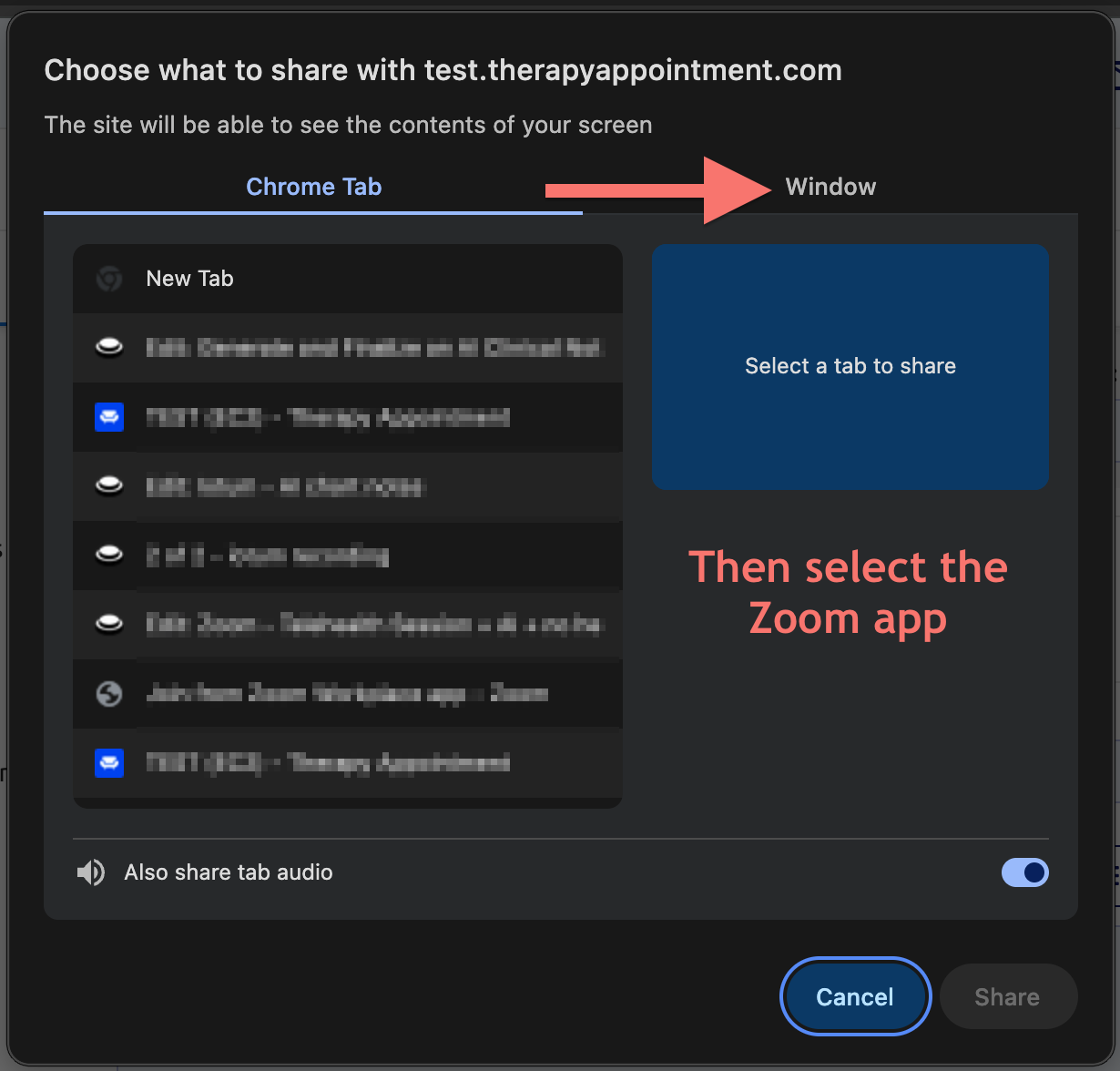
Once you select headphones you're prompted at the top center of which tab (or app/window) you'd prefer to share.
- Select Window on the right
- Click Zoom
- Ensure sound is also shared:
Our AI partner has expressed recommending Chrome instead of Safari as Chrome is the only supported browser to record sessions when using headphones.
Our AI partner has expressed recommending Chrome instead of Firefox as Chrome is the only supported browser to record sessions when using headphones.
Steps:
- Within 15 minutes of the appointment, go to your dashboard or calendar and click on the appointment
- Clients can also join within the same time frame from their dashboard
- In the pop up click Start Session (top right)
- Then click again
Before you begin...
Lastly, we just need to bring up the chart note and begin the AI chart note recording. Once you join the telehealth session:
- From the (left menu) click on the appointment
- Click (right menu)
- Scroll down to the Notes section & on the right click shown below:
- Select Telehealth in the dropdown
- You'll then be prompted to allow your microphone and camera, click Allow & continue
- Test and choose your microphone (not speakers/output)
- You'll see a live mic indicator below the drop down
- Click Next
- Select Telehealth
- In the dropdown below it select whether you're using Headphones or not
- If you're not using headphones, click Start Recording — recording will immediately begin
- If you're using headphones, in order to hear your system audio you'll need to share your tab with the telehealth session on another prompt
- When the screen picker appears, select your telehealth session
- Enable the 'Share audio' option at the bottom before clicking Share
- Select Allow then Start Recording
- Return back to your telehealth tab and perform your session
- If you need to pause, click Stop Recording
- When complete, click Stop Recording, then End Session
- We will then begin automatically generating your chart note based on your chart type selection, and the transcription recorded
- While your note is generating, you can either wait or click outside and return back when finished
- This is not a transcription service. AI charting compiles a chart note based on all the audio input
Even after generation, you can still change your templates:
- SOAP
- DAP
- BIRP
- GRIP
- SIRP
- PIRP
- PIE
- Intake
- Case Management
- Supervision
- Couples SOAP
- Pick your note type
- Click
- Make further edits below
Once generated you should see something similar to this:
Here you have five options that we'll break down:
Chart note type
At the top right you can switch between chart note type you prefer shown above. The default is SOAP, and each other template is listed above.
At the bottom right we have the following options:
Edit ( free! )
Enter your details in the bottom center text box, then click to the right to regenerate the note. Editing is free of charge.
Example edit prompts:
- Make this note more concise
- Include more session quotes
- Make symptoms more specific for X
- Add _ and supporting details to the treatment plan section
- Make this note ready for insurance review in specific topics X Y Z
- Have an edit prompt that would be helpful to others? Email us!
Replace notes
After thorough review and satisfied with the generated note, click (bottom right). This will add the note and overwrite anything you've already entered in this section.
Don't worry, if you need to make changes after the fact, you still can do so in the notes section of your generated chart note inserted, but you won't be able to use the edit box specifically to regenerate unless you re-enter the AI notes editor.
Add to notes:
If you already have existing notes, and would just like to append this output to it, click instead (bottom right).
Discard
Clicking that will discard any note generated. You will still be charged for this generated note.
Once added to notes:
Your generated note will be added to the notes section of the notes. You should see something similar to this:
Want to create a treatment plan as well?
- Review your chart note and ensure it's correct, then scroll down and click (bottom right)
- On the next page check off Create/Include Treatment Plan at the bottom right above before clicking it.
- For more details, review our article here: Treatment Plans
Outside telehealth solutions
If you're not using one of our integrated solutions, essentially you'll just need to make sure our AI tool is listening to both of your voices.
Essential steps:
In our system, open the appointment and click on charting. Open the AI charting button and select your configuration. Then click record. Then open your telehealth program
After recording and ending a session, the AI will automatically generate a chart note draft for you based on your template slected for you to further edit and finalize.
Once the AI has done the heavy lifting and is inserted into our charting screen, you can further review and make smaller edits as needed as you normally would.
You can use our in person option if your microphone can also hear their voice (like with speakers), or select the Telehealth option to record your telehealth system's audio so AI charting can hear it.
Our recommendation would be to use one of our two integrated telehealth solutions. For more information about these two options please see below:
- Zoom telehealth (requires Zoom license)
- Integrated telehealth
Hang ups
Blank chart note after long session
In extremely long sessions, or if you have unexpected network connectivity issues, you may return to the charting screen and see a blank chart note with two options.
- Here you'll see a screen with a similar hang up
- On the right, note the two buttons instead of the start / stop recording options:

Causes and solutions:
Here are the leading causes of this:
- Timeout and possible sign out of the system while charting due to inactivity consistent with your security settings
- Internet connection issues
- If you've already generated and inserted the AI chart note
In this instance you have two options:
Clicking brings you back to the current AI chart note progress you've been working on. If needed, you can use the feature and refine the chart note as many times as you need for free.
Clicking creates a brand new chart note, resetting all your progress currently.
This restarts the process entirely.
Blank AI Note
If you record a session, and see blank entries on the section headers, that means your session wasn't recorded.
This likely means you didn't record the correct audio input, or your audio input wasn't transmitting. In this extremely rare case, we recommend testing out your audio source with a test session before performing another session.